Every author who has listed a book on KDP knows the ritual: open the dashboard, paste the title, paste the blurb into an editor that eats your paragraphs, type seven keywords one at a time, hunt for categories in a tree with thousands of entries, then dig up the EPUB and cover you exported an hour ago. It is not hard. It is just slow, and it is where typos and mismatched files creep in.
AIWriteBook already holds every one of those fields, because you wrote them in the Metadata step. The extension moves them into KDP for you, one page at a time, while the KDP tab stays fully in your hands. The two fields it cannot read off your book, the categories and the keywords, it researches against Amazon itself.
How it works
Four steps, and the only thing that happens without you is the copying.
- 1
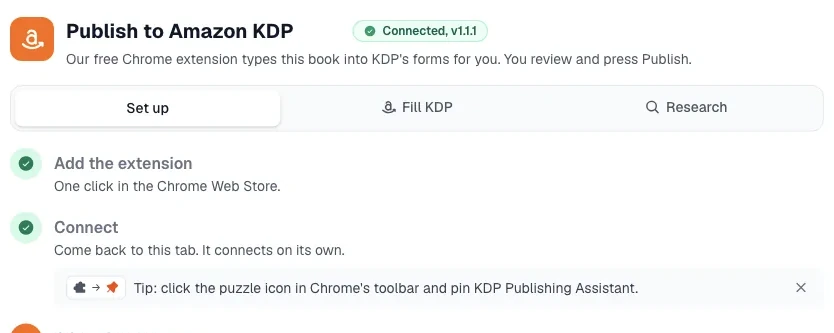
Install the extension
Install it in the browser you publish from and sign in with your AIWriteBook account. A free account is enough. The extension runs on kdp.amazon.com, www.amazon.com and aiwritebook.com, and on nothing else.
- 2
Open your book's Export page
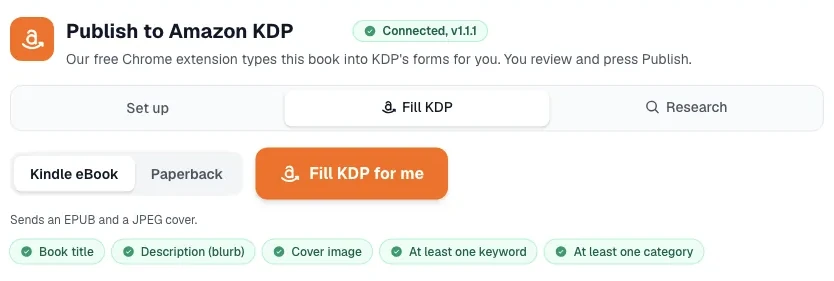
In AIWriteBook, open the book and go to the Export step. The KDP card there shows a readiness list: title, description, cover, keywords and categories. Anything missing links straight back to the Metadata step, where the research card can fill the last two for you.
- 3
Click Open KDP and fill it for me
Pick Kindle eBook or Paperback. AIWriteBook builds the manuscript and, for eBooks, converts your cover to the JPEG KDP requires, then opens KDP in a new tab with the panel beside the form. On an account without Pro the metadata still fills in full and you attach your own manuscript and cover.
- 4
Review each KDP page and press Publish yourself
On each of the three KDP pages (Details, Content, Pricing) you press Fill this page, read the per-field checklist, and press KDP's own Save and continue. The panel never clicks a KDP button and never presses Publish.
What it fills
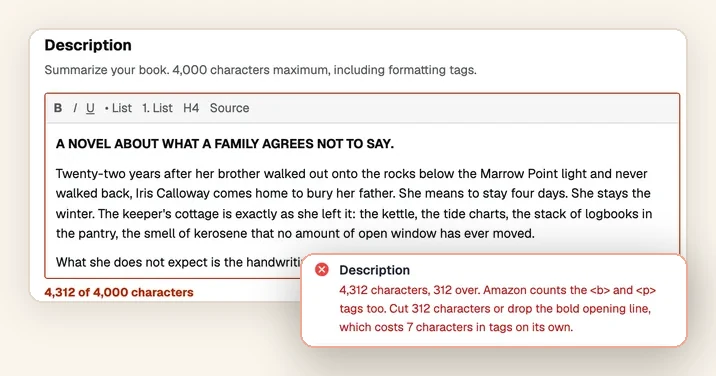
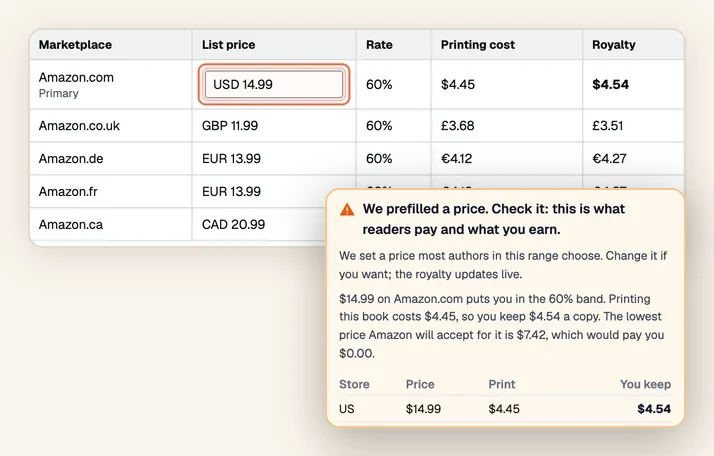
Everything below comes from your book's Metadata step in AIWriteBook. If a field is empty there, it stays empty in KDP and the checklist tells you. The fill is free on every account, on any number of books, any number of times.
- Title and subtitle
- Author name (first and last)
- Description, with your paragraphs kept
- Keywords, the whole list
- Categories, searched in KDP's picker by name
- Language
- Manuscript file (EPUB for eBooks, print-ready PDF for paperbacks)
- eBook cover as a JPEG
- Print settings: trim size, paper colour, ink and bleed
- Series name and number, ISBN and publisher when you set them
Category & Niche Finder
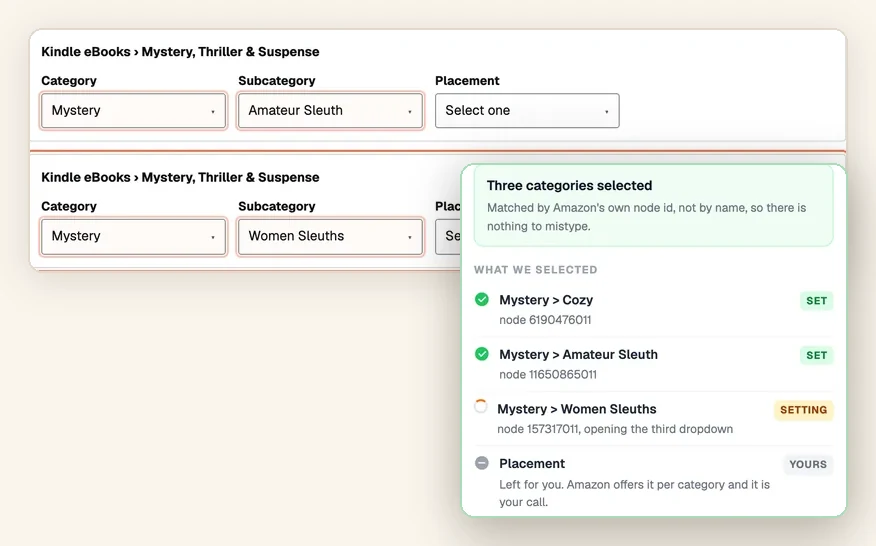
Amazon lets you pick three categories and seven keywords, and then tells you its support team cannot advise you on any of them. So most authors pick by feel, and a good book lands on a shelf nobody browses. The finder does that work against real data instead: it checks ten candidate categories and twenty keywords against Amazon's live bestseller and search pages, in your own browser, and takes about two minutes.
What a run comes back with
- The three categories to select, each with the number of sales a day it takes to reach #1 and to hold #10 in it.
- A competition label for each one, with the numbers it was worked out from one tap away.
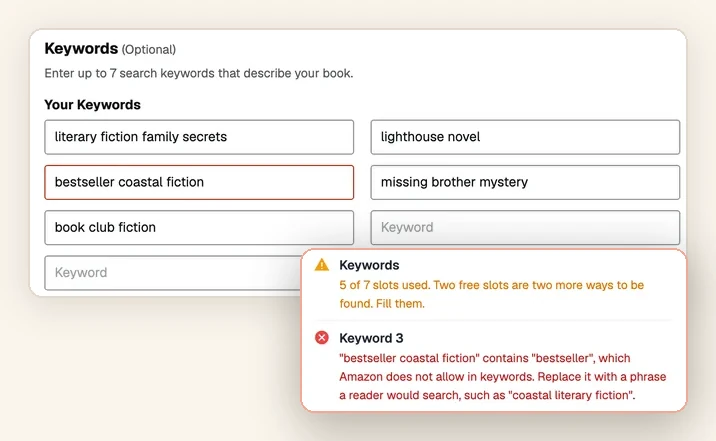
- Seven keywords for KDP’s seven slots, already filtered against Amazon’s banned terms.
- One underserved niche worth owning, named rather than described.
- Numbers on Amazon itself, if you turn the overlay on: sales rank, an estimated sales range, book age, page count and whether a title is independently or traditionally published.
Three places to start a run
In AIWriteBook, on the book's Metadata step
The card at the top of the section runs the research and writes the three categories and the seven keywords straight into the fields you are already filling. They become ordinary chips you can edit or remove, and an undo next to them restores exactly what you had.
In the toolbar, with no book at all
Open the extension and type a genre, a topic, a few keywords or an Amazon book link. You do not need a book in AIWriteBook, or a book at all, to research a niche before you write it.
On the KDP Categories step
While you are filling the form, the panel offers the result it already has for that book and maps it into Amazon’s own category picker. Nothing is charged again however many times you come back to it.
It needs the extension, including inside AIWriteBook
The research reads Amazon's public category and bestseller pages, and Amazon serves those to a real browser rather than to a server, so the reading happens in yours. That is why the card on the Metadata step asks you to install the extension first. Everything else on that step works without it: you can type your categories and keywords by hand and publish normally, on any browser.
Amazon.com is the only marketplace in this first version. The other stores come later.
What costs what
Guidance, checks and autofill are free forever. Category & niche research: one free run on every account, then Pro, 100 credits a run.
| What you get | Who has it | What it costs |
|---|---|---|
| Guidance and live field checks | Every account, including free ones, on any book | Free forever |
| One-click fill of the whole KDP form | Every account, any number of books, any number of times | Free forever |
| Your own EPUB, PDF and cover validated and attached | Every account | Free forever |
| Formatted EPUB and print-ready PDF built for you | Pro and Ultra, and every AppSumo tier | Included in the plan |
| Category & Niche Finder | Pro and Ultra, and AppSumo Tier 3 and Tier 4 | One full run free on every account, then 100 credits a run |
Nothing in the fill is ever drawn as locked, because nothing about it is. The one paid thing in that path is the formatted file itself: without Pro, every field still fills and you attach your own manuscript and cover. Credits are only spent on a research run that finishes. A run you cancel, or one Amazon rate-limits, costs nothing, and the result of a run you did keeps opening for you whatever your plan is later.
What it never does
It never presses Publish
The panel fills fields and nothing else. Save and continue, the pricing confirmation and the final Publish button are always yours to press.
It never sees your Amazon password
You log in to KDP as you always do. The extension works inside the page after you are signed in and stores no Amazon credentials anywhere.
The AI disclosure is your answer
KDP asks whether a book contains AI-generated content and requires disclosure even for heavily edited AI text, while AI-assisted editing and brainstorming need not be disclosed. The panel shows that rule next to the question and leaves the answer to you.
Privacy
What leaves AIWriteBook is your own book's metadata and the export files, delivered to the KDP tab in your own browser through a link that expires after one hour. A research run reads Amazon's public pages in your browser, works the statistics out there, and sends only those numbers to us; no Amazon page content is stored on our servers. If a field fails to fill, the extension sends a support ticket with the field name and the reason, so we can fix the selector; it never includes your access token, your Amazon account details or the page contents. Nothing is sent to any third party.
Install in two minutes
The extension is distributed as a zip while the Chrome Web Store listing is under review.
- 1
Download the zip and unpack it into a folder you will keep.
- 2
Open chrome://extensions, switch on Developer mode in the top-right corner, click Load unpacked and select the unpacked folder.
- 3
Pin the icon, then sign in with your AIWriteBook account. A free one is enough, and it is what connects your books to the panel.
Reload any open AIWriteBook tab after installing, so the Export and Metadata cards can detect the extension.
Frequently asked questions
The questions authors ask before they let anything near their KDP account.
Keep reading
Guides and features that pair with the extension.
Write it once, list it once
Your book's metadata already lives in AIWriteBook. KDP Publishing Assistant is the last mile: it carries that work into Amazon's forms without you retyping any of it, answers the two fields your book cannot answer for itself, and stops exactly where your judgement should begin.
See the full KDP publishing guide