

What this guide covers
A KDP book is really two products built from the same words. The Kindle edition is a reflowable file that rearranges itself to fit any screen and font size a reader chooses. The paperback is a fixed, print-ready PDF where every line break and margin is locked forever. Format them as if they were the same thing and at least one will look wrong. Below is the whole process in order, with the exact specs that cause the most rejections.
Ebook and paperback are two different files
Before you touch a single margin, internalise the split. Almost every formatting mistake comes from treating the two editions identically.
| Aspect | Ebook (Kindle) | Paperback (print) |
|---|---|---|
| File type | DOCX, EPUB, or KPF (Kindle Create) | Print-ready PDF only |
| Layout | Reflowable — resizes to any device | Fixed — locked to a trim size |
| Page numbers | None — readers see a progress bar | Required, with running headers |
| Fonts | Reader can override yours | Must be fully embedded in the PDF |
| Images | RGB, kept small for download size | 300 DPI, sized to the printed dimension |
Trim size, margins and bleed at a glance
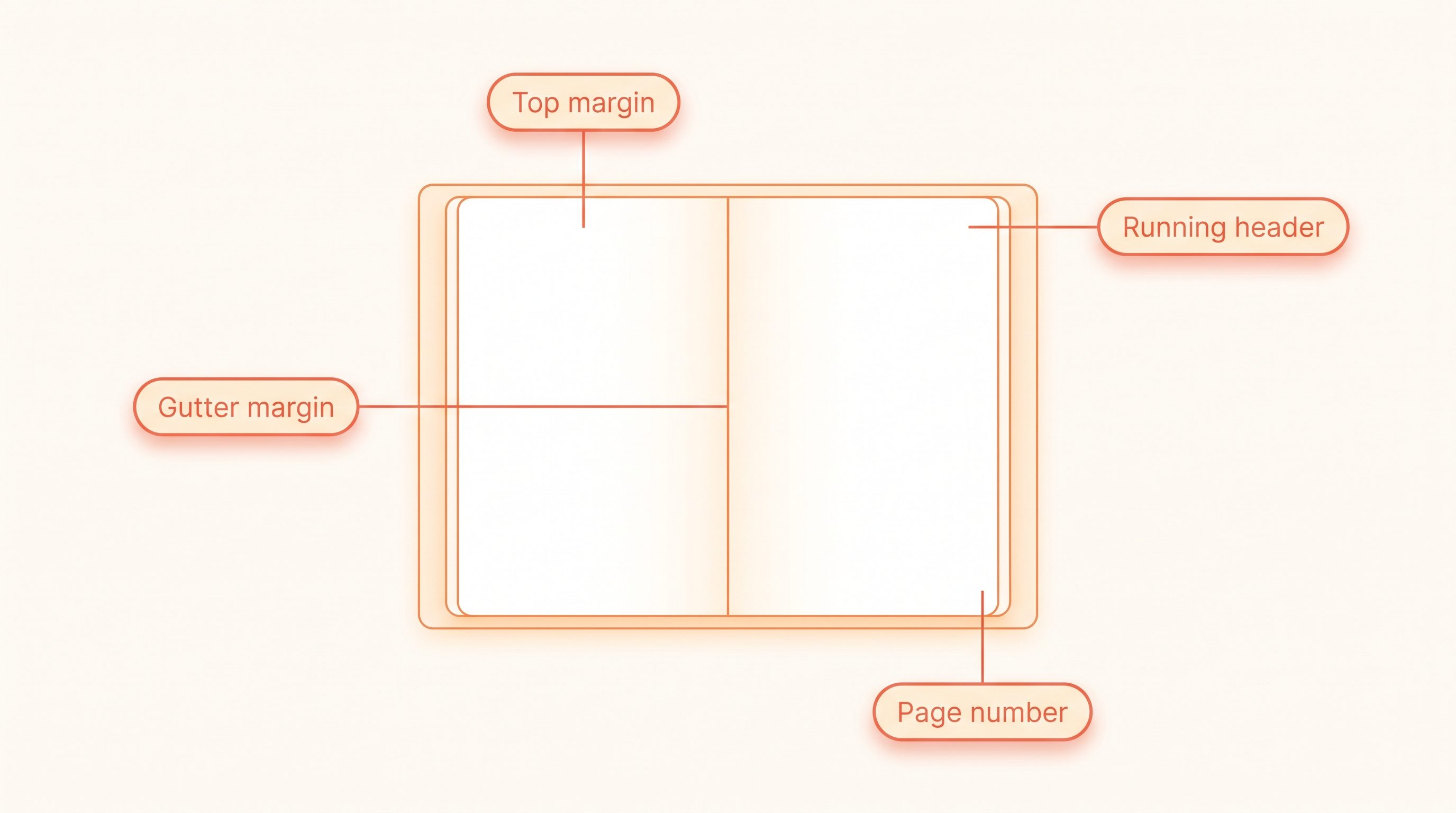
For the paperback, KDP scales your inside (gutter) margin to the page count — thicker books need more room for the binding. These are the official minimums; add a little for comfort. Outside, top and bottom margins must be at least 0.25 inches without bleed, or 0.375 inches with bleed. Not sure how long your book will run? A quick word count and page estimate tells you which band below you land in.
| Page count | Minimum inside (gutter) margin | What it means |
|---|---|---|
| 24 – 150 pages | 0.375 in | Most novellas and short nonfiction |
| 151 – 300 pages | 0.5 in | A typical 60k – 90k word novel |
| 301 – 500 pages | 0.625 in | Long fiction and dense nonfiction |
| 501 – 700 pages | 0.75 in | Epics, omnibuses, reference titles |
The most popular trim sizes are 5x8 and 5.25x8 for fiction, and 6x9 for nonfiction and large-print. Your trim size also decides how many words fit on each printed page, and therefore your final page count — so pick one before you format, because changing it later reflows every page and resets your margins along with it.
Step 1: Build the structure and matter
A manuscript is more than chapters. Front matter sets up the book: a half-title or title page, the copyright page, an optional dedication, and a table of contents (linked for the ebook, page-numbered for print). Back matter closes it: an about-the-author page, an 'also by' list if you have one, and a short, direct request for a review. Use real heading styles for every chapter title — never a manually enlarged, bolded line — because those styles are what generate a working ebook table of contents and clean print page breaks. If you are still drafting, AIWriteBook turns a one-line idea into a structured outline and full chapters, so you reach this step with a complete, properly chaptered manuscript instead of a wall of text.
Start every chapter with a page break, not a stack of empty paragraphs. Empty paragraphs shift around on Kindle and leave half-blank pages in print.
Step 2: Format the ebook (reflowable)
The Kindle edition must reflow, so you are formatting structure, not pixels. Apply heading styles to chapter titles, use a single first-line indent for body paragraphs (set it in the paragraph style, never with tabs or spaces), and insert genuine page breaks between chapters. Keep one consistent body style and avoid forcing a specific font — readers pick their own, and your job is just to make headings, blockquotes, and emphasis behave. Export to EPUB or upload a clean DOCX; KDP also accepts a KPF file from the free Kindle Create app. AIWriteBook does this step for you: the Format step applies the heading styles, paragraph indents, spacing and chapter page breaks automatically, validates the file with EPUBCheck, and hands you a KDP-ready EPUB (Pro, Ultra and every AppSumo tier) or DOCX (Plus and above) — so the most error-prone part is already done.
Strip every manual space and tab before exporting. Find-and-replace double spaces to single, and replace tab indents with a paragraph-style indent — stray whitespace is the number-one cause of ugly Kindle pages.
Step 3: Build the paperback PDF
Print is unforgiving because nothing reflows. Choose your trim size, set your page size to match it exactly, then apply mirrored margins so the inside (gutter) edge gets the extra room from the table above. If any image or background runs to the very edge of the page, you need 0.125 inches of bleed on the outer three sides; if nothing bleeds, leave it off. Export a single PDF with all fonts embedded. AIWriteBook's Format step derives all of this from your trim size and final page count and writes the interior as PDF/X-1a:2001, the file IngramSpark and BookVault ask for and KDP accepts, with every font embedded. If you also need a custom spine width for the cover, our companion KDP cover calculator guide covers the spine math by page count and paper type.
Open your finished PDF and check the file properties for 'Fonts'. Every font should say 'Embedded' or 'Embedded Subset'. A non-embedded font is the most common silent reason a paperback prints wrong.
Write and format a KDP-ready book in one place
AIWriteBook takes you from idea to a fully chaptered draft, then its Format step typesets the book for you — trim size, mirrored margins, gutter, running heads, folios and font embedding applied automatically — and produces a PDF/X-1a print interior, a wrap cover with the spine width computed from your page count, a validated EPUB, DOCX and an eBook cover JPG.
Step 4: Headers, footers and page numbers
Paperbacks need running headers and page numbers; ebooks need neither. For print, use mirrored sections so odd and even pages can carry different running heads — author name on the verso, book title on the recto is the classic convention. Suppress headers and page numbers on chapter-opening pages and on the front-matter pages (title, copyright, dedication), and never start your visible page numbering on the copyright page. Page one of the story is where readers expect 'page 1' to feel like it begins.
Use different-odd-and-even headers and a separate first-page setting per section. This is the single Word feature that makes professional-looking print headers possible without manual fiddling.
Step 5: Fonts, images and tables
Body text should be a readable serif at roughly 10 to 12 points for print; reserve display fonts for chapter titles only, and never use more than two or three typefaces in the whole book. Print images must be 300 DPI at their printed size — a photo that looks crisp on screen can pixelate badly on paper — and KDP prints interiors in either black-and-white or premium color, which changes your cost and your image prep. Tables rarely survive a reflowable ebook, so for Kindle convert complex tables to a clean image or restructure them as lists; in print, keep tables inside the text margins so nothing clips at the trim edge.
If a table must stay a real table in the ebook, keep it to two or three columns. Anything wider gets squeezed unreadably on a phone screen.
Step 6: Preview and run the upload checks
Never publish on faith. Upload your file and open KDP's previewer: the online previewer shows how the ebook renders on phones, tablets, and e-readers, while the print previewer flags margin and bleed problems and shows the exact trim with crop marks. Page through the whole book, not just the first chapter — check that every chapter starts on a fresh page, that no text sits inside the gutter or hangs into the margin, and that your table of contents links actually jump. Fix, re-upload, and preview again until it is clean. Only then hit publish — and from there, our full guide to publishing on Amazon KDP walks you through pricing, categories, and going live.
Read the print previewer with the 'show bleed and trim' guides on. Anything important — page numbers, headers, image edges — that sits in the pink trim zone will get cut off on the physical book.
Which formatting tool should you use?
Three routes get a clean file to KDP. The right one depends on how your manuscript already exists and how polished you need the print edition to look.
Kindle Create
Best for first-timers on a budget
Amazon's free app. Strong for reflowable ebooks and simple print interiors; it handles chapter styling and exports a KPF and a print-ready PDF. Limited design control, but it is free and built to pass KDP's checks.
Microsoft Word or Google Docs
Best if you already drafted there
Format with heading and paragraph styles, then save the print edition as a PDF and upload the DOCX for Kindle. Free and familiar, but you must manage margins, mirrored sections, and font embedding yourself.
Dedicated apps (Vellum, Atticus)
Best for series and a polished look
Paid tools that output a refined EPUB and a print PDF from one source, with built-in trim presets and chapter ornaments. Worth it if you publish often and want a professional interior without manual work.
Why KDP rejects or flags a file
Most rejections trace back to the same handful of issues. Catch these before you upload and you will usually clear review on the first try.
Margins too small or text in the gutter
If your inside margin is below the minimum for your page count, text disappears into the binding. Match the table above and add a little breathing room.
Fonts not embedded in the print PDF
An un-embedded font substitutes at the printer and can break your layout. Always export with all fonts embedded and confirm it in the PDF's font properties.
Low-resolution images
Print needs 300 DPI at the final printed size. A 72 DPI web image looks fine on screen and prints as a blurry block.
Missing or wrong bleed
Edge-to-edge images without 0.125-inch bleed get a thin white border; adding bleed when nothing bleeds shifts your whole layout. Use bleed only when art reaches the trim.
Links that point to other stores
A Kindle ebook that links readers to a rival retailer can be flagged. Keep external links relevant and never send buyers off-platform from inside the book.
Pre-upload formatting checklist
Run this once for the ebook and once for the paperback before you publish.
Frequently asked questions
The formatting questions new KDP authors ask most often.
No. KDP's requirements are fixed and public, and free tools like Kindle Create or a well-styled Word file will pass review. A paid formatter or a dedicated app buys polish and saved time, not access — plenty of bestselling indie books are formatted by their authors.
5x8 and 5.25x8 are the go-to sizes for fiction; 6x9 is standard for nonfiction, memoir, and large-print editions. Pick the one that matches comparable titles in your category, and lock it in before formatting because changing it reflows the whole book.
No. The ebook is a reflowable file (DOCX, EPUB, or KPF) with no fixed page numbers, while the paperback is a fixed print PDF with margins, bleed, and running headers. Build the manuscript once, then export two separate, purpose-built files.
For the Kindle edition, KDP accepts DOCX, EPUB, and KPF (from Kindle Create). For the paperback interior, it accepts a print-ready PDF only. Covers are uploaded separately as PDF for print or JPEG/TIFF for the ebook.
Almost always stray manual formatting — tabs, multiple spaces, or empty paragraphs used for spacing. Reflowable files ignore your intent and rearrange that whitespace. Replace manual indents with paragraph-style indents and use real page breaks, then re-check in the previewer.
Most titles clear review and go live within 24 to 72 hours. A clean file that passes the previewer rarely gets held; the delays usually come from margin, bleed, or image-resolution flags that you could have caught beforehand.
Format once, publish with confidence
Formatting for KDP feels intimidating only because the rules are invisible until you break one. Once you know your trim size, scale your margins to the page count, embed your fonts, and run both editions through the previewer, the process becomes a checklist rather than a guessing game.
Do it carefully once and you have a template you can reuse for every future book. The hours you spend here are what separate a listing that looks self-published from one that looks like it came off a publisher's press.