

What this guide covers
A KDP book is two products built from the same words. The Kindle edition is a reflowable file that rearranges itself for every screen and font size a reader picks. The paperback is a fixed page where every line break and margin is locked. Set up the manuscript once with real heading and paragraph styles, then build each edition to its own rules. All specs below come from Amazon's KDP help pages for paperbacks and ebooks.
Kindle formatting vs paperback formatting
Almost every formatting problem comes from treating the two editions as one file. Here is how they differ.
| Aspect | Kindle ebook | Paperback |
|---|---|---|
| Files KDP accepts | EPUB, DOCX or KPF (from Kindle Create) | PDF recommended; DOC, DOCX, RTF, HTML or TXT also accepted without bleed |
| Layout | Reflowable: text resizes to any device | Fixed: locked to the trim size you choose |
| Page size and margins | None to set; the device decides | Trim size plus gutter and outside margins from the tables below |
| Page numbers and headers | None; readers see location and progress | Page numbers and running heads expected |
| Fonts | Readers can switch to their own font | Every font must be embedded in the PDF |
| Images | Sized for screens; tables often work better as images | At least 300 DPI at the printed size |
KDP no longer accepts MOBI files: reflowable MOBI uploads ended on August 1, 2021, and fixed-layout MOBI on March 18, 2025. Build the ebook as EPUB, DOCX or KPF instead.
Every KDP paperback trim size
Trim size is the finished page size of your paperback. 6 x 9 inches is the most common size in the US and KDP's default. Sizes wider than 6.12 inches or taller than 9 inches count as large trim and cost more to print. The page ranges below are for black ink, the setting most novels and nonfiction books use.
| Trim size (inches) | Trim size (cm) | Type | Pages, white paper | Pages, cream paper |
|---|---|---|---|---|
| 5 x 8 | 12.7 x 20.32 | Standard | 24 to 828 | 24 to 776 |
| 5.06 x 7.81 | 12.85 x 19.84 | Standard | 24 to 828 | 24 to 776 |
| 5.25 x 8 | 13.34 x 20.32 | Standard | 24 to 828 | 24 to 776 |
| 5.5 x 8.5 | 13.97 x 21.59 | Standard | 24 to 828 | 24 to 776 |
| 6 x 9 | 15.24 x 22.86 | Standard | 24 to 828 | 24 to 776 |
| 6.14 x 9.21 | 15.6 x 23.39 | Large | 24 to 828 | 24 to 776 |
| 6.69 x 9.61 | 16.99 x 24.41 | Large | 24 to 828 | 24 to 776 |
| 7 x 10 | 17.78 x 25.4 | Large | 24 to 828 | 24 to 776 |
| 7.44 x 9.69 | 18.9 x 24.61 | Large | 24 to 828 | 24 to 776 |
| 7.5 x 9.25 | 19.05 x 23.5 | Large | 24 to 828 | 24 to 776 |
| 8 x 10 | 20.32 x 25.4 | Large | 24 to 828 | 24 to 776 |
| 8.25 x 6 | 20.96 x 15.24 | Large | 24 to 800 | 24 to 750 |
| 8.25 x 8.25 | 20.96 x 20.96 | Large | 24 to 800 | 24 to 750 |
| 8.5 x 8.5 | 21.59 x 21.59 | Large | 24 to 590 | 24 to 550 |
| 8.5 x 11 | 21.59 x 27.94 | Large | 24 to 590 | 24 to 550 |
| 8.27 x 11.69 (A4) | 21 x 29.7 | Large | 24 to 780 | 24 to 730 |
Standard color ink on white paper runs from 72 to 600 pages on every size except A4, where it is not offered. If none of these fits, KDP also takes a custom trim between 4 and 8.5 inches wide and 6 and 11.69 inches tall. For fiction, 5 x 8, 5.25 x 8 and 5.5 x 8.5 are the usual picks; 6 x 9 suits nonfiction, memoir and large print. Your trim decides how many words fit on each page and so your page count, which sets the gutter in the next table. A quick word count and page estimate tells you which row you will land in.
KDP margins by page count
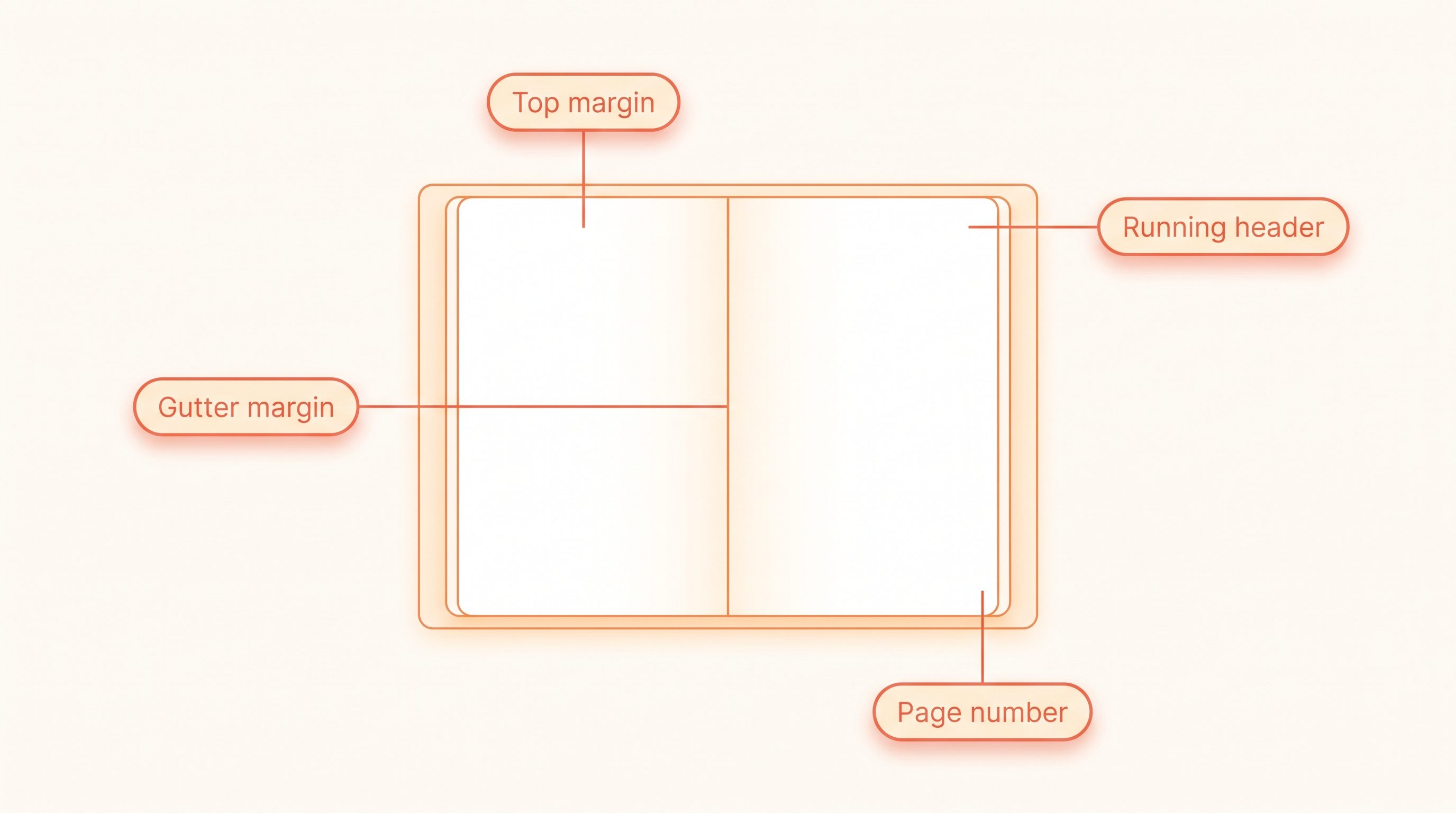
The inside (gutter) margin is the edge that disappears into the binding, so KDP makes it wider as the book gets thicker. Outside, top and bottom margins have a fixed minimum that depends only on whether your interior uses bleed.
| Page count | Inside (gutter) | Outside, no bleed | Outside, with bleed |
|---|---|---|---|
| 24 to 150 | 0.375 in (9.6 mm) | 0.25 in (6.4 mm) | 0.375 in (9.6 mm) |
| 151 to 300 | 0.5 in (12.7 mm) | 0.25 in (6.4 mm) | 0.375 in (9.6 mm) |
| 301 to 500 | 0.625 in (15.9 mm) | 0.25 in (6.4 mm) | 0.375 in (9.6 mm) |
| 501 to 700 | 0.75 in (19.1 mm) | 0.25 in (6.4 mm) | 0.375 in (9.6 mm) |
| 701 to 828 | 0.875 in (22.3 mm) | 0.25 in (6.4 mm) | 0.375 in (9.6 mm) |
Top and bottom margins follow the same minimums as the outside margin. These are minimums, not targets: leaving 0.5 to 0.75 inches on the outside keeps the text block from crowding the trim.
Set the gutter for your final page count, not your draft. If edits push a 290-page book past 300 pages, the minimum gutter jumps from 0.5 to 0.625 inches and the whole interior has to be laid out again.
KDP bleed rules
Bleed is only for pages where an image, color block or background runs to the edge of the paper. KDP trims the printed sheet, so that art has to extend past the trim line to avoid a thin white border.
- Bleed is 0.125 inches (3.2 mm) on the top, bottom and outside edges. The inside edge gets none, because it is bound.
- Page size with bleed is the trim width plus 0.125 inches and the trim height plus 0.25 inches. A 6 x 9 book becomes a 6.125 x 9.25 inch page.
- If any page bleeds, set up the whole interior with bleed, and use the larger outside margin of 0.375 inches.
- A bleed interior must be uploaded as a PDF. Word and other formats are only accepted without bleed.
Text-only novels do not need bleed. Leave it off and keep the 0.25-inch outside minimum. The cover has its own bleed and spine math, covered in our KDP cover calculator guide.
Let the formatter apply every number for you
AIWriteBook's Format step takes your manuscript and a trim size, then sets the gutter for your page count, mirrored margins, running heads, page numbers and bleed. It builds a print-ready PDF/X-1a interior, a wrap cover with the spine sized to your page count, and a validated EPUB. The files come with Pro, Ultra and every AppSumo tier; on a free account you can format your book and download a watermarked PDF.
KDP formatting templates
Amazon publishes free Word templates for every paperback and hardcover trim size on its "Paperback and Hardcover Manuscript Templates" help page. Each comes in two versions: a blank template with the page size and margins already set, and one with sample content that includes front matter and placeholder chapters you type over. Download the template for your exact trim, paste your text in as plain text, and apply the template's styles so headings and body paragraphs stay consistent.
Delete every leftover piece of sample text before you export. KDP warns that remaining template text can cause an upload error or a rejection at review.
How to format a KDP book in Microsoft Word
Word can produce both editions: a DOCX for Kindle and a PDF for the paperback. For the print file, work through these settings in order.
- 1Set the page size. Layout > Size > More Paper Sizes, then enter your trim size, for example 6 x 9 inches. Add 0.125 inches to the width and 0.25 inches to the height only if the book uses bleed.
- 2Turn on mirrored margins. Layout > Margins > Custom Margins > Multiple pages: Mirror margins. Enter the inside margin from the page-count table and at least 0.25 inches for outside, top and bottom.
- 3Style the structure. Apply Heading 1 to every chapter title and one body style with a first-line indent. Never build headings or indents from bold text, tabs or spaces.
- 4Break chapters properly. Insert > Break > Section Break (Odd Page or Next Page) before each chapter, so every chapter starts on a fresh page and can have its own header settings.
- 5Add running heads and page numbers. In Header & Footer, tick Different Odd & Even Pages and Different First Page, unlink sections from the previous one, and start page 1 at the first chapter.
- 6Export the PDF with fonts embedded. File > Options > Save > Embed fonts in the file, and untick both "Embed only the characters used" and "Do not embed common system fonts". Then save as PDF.
For the Kindle edition, keep a copy of the styled file without headers, page numbers or section-specific layouts and upload it as DOCX. Word's page setup is ignored by reflowable ebooks.
How to format a book in Google Docs
Google Docs is a good place to write and structure a book, and its output works well for Kindle. Docs has no mirrored-margin (gutter) setting, so the paperback layout is easier to finish in Word, a KDP template or a formatter.
- 1Switch the document to Pages format. File > Page setup > Pages. Page size and margins only apply in Pages format, not Pageless.
- 2Use Heading 1 for every chapter title and Normal text with a first-line indent for body paragraphs. Docs builds the table of contents from those headings.
- 3Start each chapter with Insert > Break > Page break instead of empty lines.
- 4Download the file with File > Download > Microsoft Word (.docx). That DOCX can go straight to KDP as your Kindle manuscript or into Kindle Create.
- 5For the paperback, open the DOCX in Word or paste it into the KDP template for your trim, then apply the trim size, gutter and PDF steps above.
Avoid Docs features that do not survive the export, such as text boxes and drawings placed over text. Insert images inline with the text so they stay anchored in the DOCX.
How to format in Kindle Create
Kindle Create is Amazon's free formatting app for Windows 10 and later and for macOS. It is the quickest route to a clean Kindle ebook, and a reflowable book built in it can also be published as a paperback.
- 1Import your manuscript as DOC or DOCX. Files exported from Word, Apple Pages and Google Docs all work.
- 2Confirm the chapter titles Kindle Create detects, then pick a theme for headings, drop caps and scene breaks.
- 3Export a KPF file, the format KDP prefers. EPUB export is also available for reflowable books, but it drops image bleeds, drop caps over three lines and chapter start images.
- 4To print the same book, submit it as a paperback and choose the trim size on KDP, then check headers and page numbers in KDP's print previewer.
Image-heavy books such as cookbooks and textbooks can be built in Kindle Create from a PDF as a print replica ebook, but that format is ebook-only and readers cannot resize the text.
Fonts, images, headers and the final preview
Whichever tool you use, these checks decide whether the finished book looks professional and clears review on the first upload.
Headers, footers and page numbers
Paperbacks need running heads and page numbers; ebooks need neither. The classic convention is the author's name on left-hand (even) pages and the book title on right-hand (odd) pages. Leave headers and page numbers off chapter-opening pages and the title, copyright and dedication pages, and start visible page 1 where the story or main text begins.
A separate header setting per section is what makes clean print headers possible. Without it, a single header change ripples through the whole book.
Fonts, images and tables
Body text reads best in a serif at roughly 10 to 12 points for print, with display fonts kept to chapter titles. KDP asks for images of at least 300 DPI at their printed size and suggests staying around 600 DPI so the file stays under the 650 MB upload limit. Insert images at 100% size, since shrinking or enlarging them in Word changes their resolution. Tables rarely survive a reflowable ebook, so for Kindle turn complex tables into images or lists.
Check your PDF's font list before uploading. Every font should be embedded; if the previewer still reports a missing font, its license may not allow commercial printing.
Preview and run the upload checks
Upload the file and page through KDP's previewer for each edition: the ebook previewer shows phones, tablets and Kindle e-readers, and the print previewer flags text in the margins or the trim zone. Check that every chapter starts on a fresh page, nothing sits in the gutter, and the table of contents links jump where they should. Fix, re-upload and preview again until it is clean. Then our full guide to publishing on Amazon KDP walks you through pricing, categories and going live.
Read the whole book in the previewer, not just chapter one. Margin and bleed problems usually appear on image pages and long chapters deep in the file.
Which formatting tool should you use?
Three routes get a clean file to KDP. The right one depends on where your manuscript lives and how polished the print edition needs to look.
Kindle Create
Best free route for Kindle
Amazon's free app. Turns a DOCX into a styled reflowable ebook and exports KPF or EPUB. The same book can be submitted as a paperback by picking the trim size on KDP. Design control is limited, but it is built to pass KDP's checks.
Microsoft Word or Google Docs
Best if you already drafted there
Write and style in either one. Word handles the full paperback setup with mirrored margins and embedded fonts; Docs exports a clean DOCX for Kindle. Free and familiar, but every margin, section and header is yours to manage.
A dedicated formatter
Best for a polished print book
Tools such as Vellum, Atticus or AIWriteBook's Format step apply trim sizes, gutters and running heads from presets and output both the print PDF and the EPUB from one source. Worth it if you publish often or want a professional interior without manual setup.
Why KDP rejects or flags a file
Most rejections trace back to the same handful of issues. Catch these before you upload and you will usually clear review on the first try.
Gutter too small for the page count
If the inside margin is below the minimum for your page count, text runs into the binding. Recheck the margin table after your final edits, especially if you crossed 150, 300, 500 or 700 pages.
Fonts not embedded in the print PDF
An unembedded font is swapped at the printer and can break the layout. Export with every font embedded and confirm it in the PDF's font properties.
Low-resolution images
Print needs at least 300 DPI at the final printed size. A 72 DPI web image looks fine on screen and prints blurry.
Missing or wrong bleed
Edge-to-edge art without 0.125 inches of bleed gets a thin white border; bleed on a text-only book shifts the layout. Use bleed only when art reaches the trim, and upload bleed interiors as PDF.
Leftover template or placeholder text
Sample chapters, placeholder headings or instructions left from a template can trigger an upload error or a rejection. Search the file for the template's sample words before you export.
Pre-upload formatting checklist
Run this once for the ebook and once for the paperback before you publish.
KDP formatting FAQ
The formatting questions new KDP authors ask most often.
The inside (gutter) margin depends on page count: 0.375 in for 24 to 150 pages, 0.5 in for 151 to 300, 0.625 in for 301 to 500, 0.75 in for 501 to 700 and 0.875 in for 701 to 828. Outside, top and bottom margins must be at least 0.25 in without bleed, or 0.375 in with bleed.
6 x 9 inches is the most common US paperback size and KDP's default, and it suits nonfiction, memoir and large print. Fiction usually uses 5 x 8, 5.25 x 8 or 5.5 x 8.5. KDP offers 16 standard and large trim sizes from 5 x 8 to 8.5 x 11 and A4, plus custom sizes.
Yes for the Kindle edition: style chapters with Heading 1, use page breaks between chapters, then download as DOCX and upload it to KDP or open it in Kindle Create. For the paperback, Docs has no mirrored-margin setting, so finish the trim size and gutter in Word, a KDP template or a formatter and export a PDF.
Yes. KDP offers free Word templates for every paperback and hardcover trim size, either blank with page size and margins set or with sample front matter and chapters. Remove all sample text before exporting, because leftover template text can cause an upload error or a rejection.
Kindle ebooks are uploaded as EPUB, DOCX or KPF from Kindle Create; MOBI is no longer accepted. Paperback interiors can be PDF, DOC, DOCX, RTF, HTML or TXT, but KDP recommends PDF and requires it when any page has bleed.
Format once, reuse it for every book
KDP formatting feels hard only because the rules are scattered. Pick the trim size, set the gutter for your final page count, keep the outside margins above the minimum, add bleed only when art reaches the edge, embed your fonts, and preview both editions.
Do it carefully once and you have a template for every future book. Those hours are what make a listing look like it came from a publisher rather than a first draft.