

The form that eats an afternoon
Almost nobody gets KDP's title setup right on the first pass. The errors are small, they arrive one at a time, and each one sends you back to a page you thought you were done with.
The description field is the classic. Amazon gives you 4,000 characters and lets you use a handful of HTML tags to get bold text and line breaks, then counts those tags against your 4,000. Authors paste a blurb that reads as 3,700 characters in their word processor, watch it get rejected, and have no idea which part is too long.
Keywords are the second one. Seven slots, 50 characters each, and a list of things Amazon will not accept in them: your own title words, subjective claims like "bestselling", the word "free", other authors' names, anything about price or promotion. The form does not tell you when you have broken one of those rules. Your book just does worse than it should, or gets pulled later.
Then there is trim size against page count, the paperback cover spine width, the ebook cover ratio, the royalty band that flips at $9.99, and a generative-AI questionnaire that most authors read twice and still answer nervously. None of it is difficult. All of it is easy to get wrong at eleven at night when you just want the book to be live.
I have published four books and I still open the old ones in another tab to copy what I did last time.
This is the part the extension is trying to delete.
What the panel checks, page by page
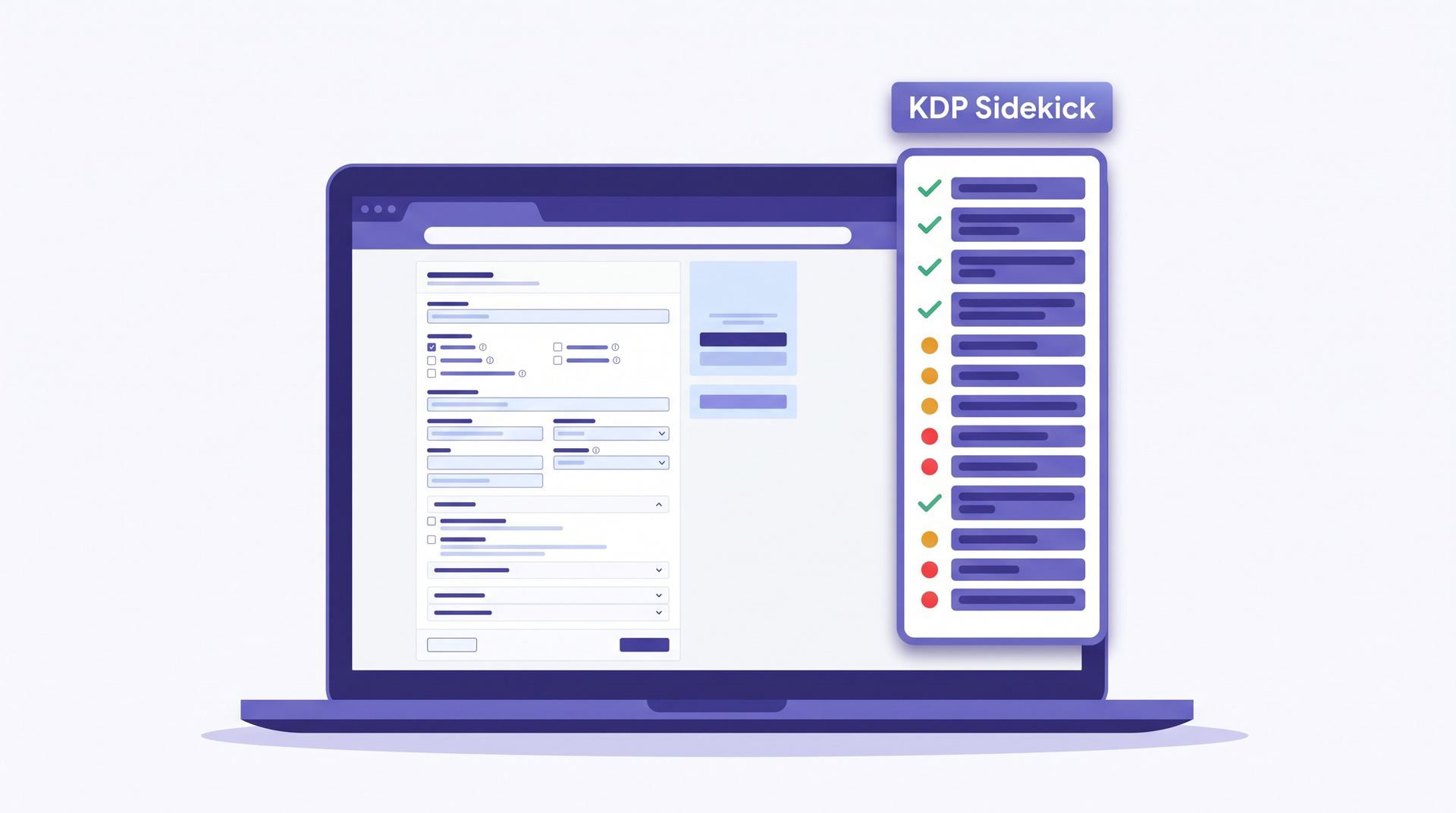
Amazon splits title setup across three pages, and so does the panel. It appears in the corner of each one, reads the values that are already in the form, and gives every field a colour: green if it passes, amber if it will be accepted but you can do better, red if Amazon will reject it. The checks run on any book, whether you wrote it in AIWriteBook, Word, Scrivener, or on paper.
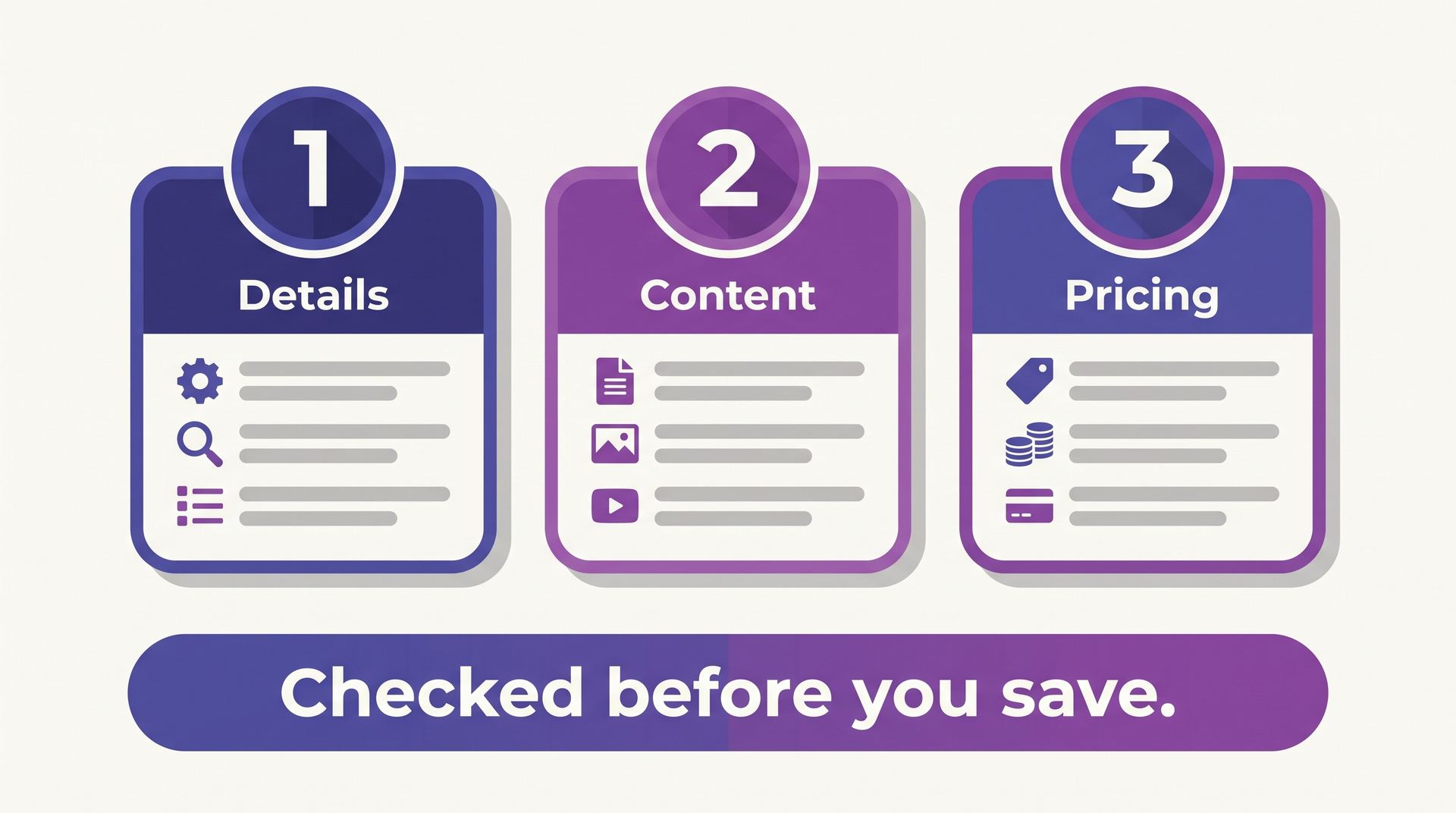
Pick a KDP page
The metadata page: title, subtitle, series, author, description, keywords, categories, and the AI disclosure questions.
- Title and subtitle length against Amazon's 200-character combined limit, plus the promotional wording Amazon does not allow in either.
- A description counter that counts the HTML tags the way Amazon counts them, with a preview of how the blurb will render on the product page.
- All seven keyword slots: per-slot length, duplicates, words you already used in the title, and terms from Amazon's banned list.
- Category count, and which of the categories you picked the KDP browser can actually find by name.
- The AI content questions, with Amazon's own rule in plain English next to them.
One click, if the book is already in AIWriteBook
If you wrote the book on AIWriteBook, the panel can type the whole form. Open the book's Export page, pick Kindle ebook or paperback, and the app builds the manuscript file and the cover, hands them to the extension, and opens KDP's title setup in a new tab.
From there it is one button per page. Press "Fill this page", watch the fields populate, fix anything you disagree with, and press Amazon's own "Save and continue". Nothing chains automatically, because the page after the one you skimmed is the page that costs you money.
What it puts in the form
- Details: title, subtitle, series, author name, the blurb as formatted HTML, your keywords, and your categories.
- Content: the EPUB or print PDF and the cover file, attached to Amazon's own uploader.
- Content: trim size, paper colour and ink, taken from the format settings you already chose in the app.
- Pricing: worldwide territories, Amazon.com as the primary marketplace, and the price and royalty option most authors in your format pick, with the live royalty shown so you can change it.
Both Kindle ebook and paperback work. The paperback cover is the one gap: Amazon wants a single wrap PDF with the spine calculated from your page count, which we do not generate yet, so the panel points you at KDP's Cover Creator or takes a wrap PDF you made elsewhere and checks it against your trim and page count first.
The fill itself is free on every account, including free ones, on any number of books and as many times as you like. There is no plan behind it and no trial counter. What sits on a plan is the formatted file: the EPUB and the print-ready PDF we build are part of Pro. Without Pro the metadata still fills in full and you attach your own manuscript and cover, which is the path below.
If your keywords are the part you have not done yet, our free KDP keyword research tool will give you seven slots worth before you open the form at all.
And if this is your first title, read the full KDP publishing walkthrough first. The extension makes the form faster, but it does not decide your categories for you.
A book written somewhere else
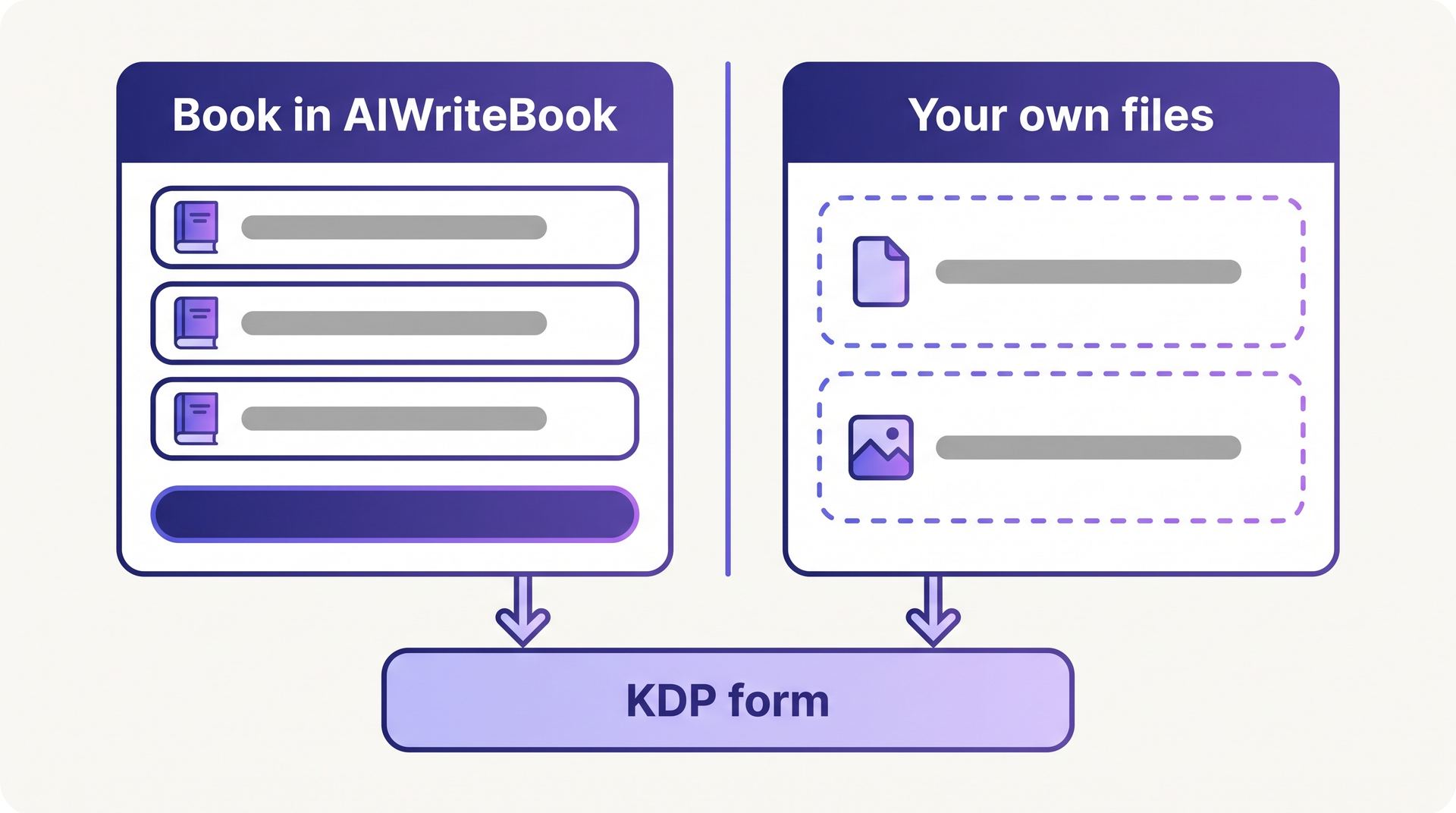
The guidance half works for everyone, on any book, with nothing uploaded. The panel also has a second path for manuscripts written elsewhere: drop your own EPUB or PDF and your own cover into it, and it validates the files against Amazon's rules before they go anywhere near the uploader.
It checks the file type and size, the cover ratio and pixel dimensions, whether the EPUB actually opens, and, for a paperback, whether the page count and trim in the PDF match the trim you chose on the form. When something fails, the panel tells you which number is wrong and what it needs to be, rather than repeating Amazon's error text back at you.
No metadata is filled in this path, because we do not have your metadata. Every field still gets checked as you type it.
None of that needs a paid plan either. The extension asks for a free AIWriteBook account so it knows whose books to show and where to send your support tickets, and that is the whole requirement. Our paid plans cover the formatted EPUB and print PDF, the writing and formatting on the site, and the category research below.
The part Amazon will not help you with: your three categories
Amazon gives you three categories and seven keywords, and then tells you, in its own help pages, that its support team cannot advise you on which ones to choose. So most authors choose by feel. A book that is genuinely good lands on a shelf nobody browses, sells eleven copies, and the author concludes the book was the problem.
The Category & Niche Finder is the second job in the same extension. It takes your book, or a genre, or a few keywords, or the Amazon page you happen to be looking at, and checks ten candidate categories and twenty keywords against Amazon's live bestseller lists and search pages. The reading happens in your own browser, at a deliberately slow pace, and takes about two minutes.
What comes back
- Three categories to select, each with the number of sales a day it takes to reach #1 in it and the number that holds #10.
- A competition label for each one, with the numbers it came from one tap away, because a score you cannot check is a guess with a percentage on it.
- Seven keywords for the seven slots, already filtered against Amazon's banned terms so none of them costs you the listing.
- One underserved niche worth owning, named rather than described.
You can start a run in three places, and they all run the same thing. On the Metadata step of a book you are writing in AIWriteBook, where the card writes the three categories and the seven keywords straight into the fields you are already filling, as ordinary chips you can edit, with an undo that restores exactly what you had. From the extension's toolbar, with no book at all, which is the one to use when you are deciding what to write next. And on the Categories step of the KDP form itself, where the panel offers the result it already has for that book and maps it into Amazon's own category picker.
All three need the extension installed, including the one inside AIWriteBook. That is not a preference. Amazon serves its category and bestseller pages to a real browser and not to a server, so the reading has to happen in yours. Everything else on the Metadata step works without it: type your categories and keywords by hand and the book publishes normally, on any browser.
What a run costs
Every account gets one complete run free. Not a sample, not a blurred preview: the same run an entitled account gets, at full quality, on whichever book you want. After that the finder is on the Pro and Ultra plans and on AppSumo Tier 3 and Tier 4, at 100 credits a run. Credits are only spent on a run that finishes, so a run you cancel or one Amazon rate-limits costs nothing, and the result of a run you did keeps opening for you whatever your plan is later.
It also puts the numbers on Amazon itself
Turn the overlay on, and any Amazon book page gets a card with the sales rank, an estimated sales range, the book's age, its page count, its price, and whether it was published independently or by a traditional publisher. Any search results page gets a strip with the page averages and an opportunity score for that keyword. It is off when you install the extension, because the first visit to Amazon should not be a surprise.
Amazon.com is the only marketplace in this first version. The other stores come after it.
What it never does
Extensions that can read a publishing dashboard deserve suspicion. Here is the short list of things this one does not do, and all of it is enforced in the extension's manifest rather than promised in a blog post.
- It never presses Publish. It never presses Save and continue either. Every button that submits something to Amazon is yours.
- It never reads or stores your Amazon password. Sign-in happens in Amazon's own tab, and the extension has no access to it.
- It never sends your KDP page anywhere. Field values are read in the browser to run the checks and stay there.
- It runs on kdp.amazon.com, www.amazon.com and aiwritebook.com and on no other site. Every other page you visit is invisible to it.
- It never collects browsing history, and there are no ad or analytics trackers on Amazon pages.
What it does keep is your AIWriteBook sign-in token, in the browser's extension storage, so you are not signing in every morning. When you use the fill, it downloads the metadata, manuscript and cover for the one book you picked from your own account. During a research run it reads Amazon's public pages, works out the statistics in your browser, and sends us only those numbers. No Amazon page content is stored on our servers.
When a fill fails, it opens a support ticket with the field that broke and the selector it tried. The ticket never carries your token, your Amazon account details, or the page HTML.
The AI disclosure box, and why we outline it in orange
Amazon asks whether your book contains AI-generated content. Its rule draws a line between generated and assisted: text a model wrote is AI-generated and must be declared, even if you rewrote every paragraph afterwards, while brainstorming, editing and proofreading help does not count. Amazon does not publish the answer on your listing. It just wants to know.
For books that came out of AIWriteBook, the panel preselects Yes, and then text as AI-generated with extensive edits, because for most of our authors that is the accurate answer. It leaves the image question alone, since we cannot tell from here whether you drew the cover, generated it, or paid someone.
Then it makes a nuisance of itself
The panel scrolls that field into view, outlines it, and keeps the outline until you either change the answer or tick "I checked this". The wording in the panel is blunt: we preselected this because the book was written in AIWriteBook, so confirm it matches how you actually worked, because Amazon holds you responsible for the answer and not us.
In the own-files path nothing is preselected at all. We have no idea how that manuscript was made.
If you want the longer version of Amazon's policy and what it means for an AI-assisted book, we wrote that up in our guide to KDP's AI disclosure rules.
Installing it
- 1
Open the feature page in Chrome
The Chrome Web Store listing is the install button on our KDP Publishing Assistant page. Open it in the browser you publish from.
aiwritebook.com/features/kdp-chrome-extension - 2
Add it and pin it
Chrome will ask for access to kdp.amazon.com and aiwritebook.com. Pin the icon so the book picker is one click away.
- 3
Sign in with your AIWriteBook account
Free accounts are fine. Signing in connects your books to the panel and gives your support tickets somewhere to land.
- 4
Open KDP and start a title
The panel appears in the corner of the Details page on its own. There is nothing else to configure.
It needs desktop Chrome
Anything built on Chromium installs it: Chrome, Edge, Brave, Arc, Opera, Vivaldi. Safari and Firefox use different extension formats and are not supported. Neither is mobile, which is fine, because nobody should be filling in KDP's title setup on a phone.
Questions
Mostly, and the exceptions are easy to state. Guidance, checks and autofill are free forever. Category & niche research: one free run on every account, then Pro, 100 credits a run. The formatted EPUB and print-ready PDF are on Pro too; without Pro the form still fills completely and you attach your own manuscript and cover. You need a free AIWriteBook account to sign in.
Where this fits
The form is not the interesting part of publishing a book, and it has never deserved the afternoon it takes. Having the rules sitting next to the field while you fill it in removes most of the rejections, and having the whole form typed for you removes the rest of the tedium.
Install it before you start your next title rather than halfway through, so the checks are there for the description and the keywords, which are the two fields worth getting right.
For everything either side of the form itself, from categories and keyword research to launch pricing, our complete Amazon KDP guide covers the whole path.
KDP Publishing Assistant
Field-by-field checks on Amazon KDP, a one-click fill from your book, and your three categories picked from live Amazon data. Desktop Chrome.
See the extension page